Make any photo look 8-bit
Chunky pixels, crushed palettes, retro-console color — the 8-bit treatment, live in your browser.
Apply the 8-bit filter →Free · no signup · runs locally in your browser
How it works
- Open the editorStarts in Pixel Art mode, the base of the 8-bit look.
- Crush the paletteLower density to quantize colors; raise pixel size until it reads retro.
- Add texture and exportOptionally add Bayer dither for period-correct banding, then download.
The 8-bit look is more than big pixels — it's a limited palette doing a lot with a little. Goldenboy gets you there with two coupled controls: pixel size sets the resolution of the sampling grid, and density quantizes color down toward console-era palettes. Push both and a modern photo collapses into something that looks pulled from a cartridge.
From there, grading looks shift the mood — sun-bleached arcade, moody CRT, clean handheld — and optional dithering adds the era-correct texture where gradients used to band. Everything previews live at full size, and standard PNG exports are free with no watermark.
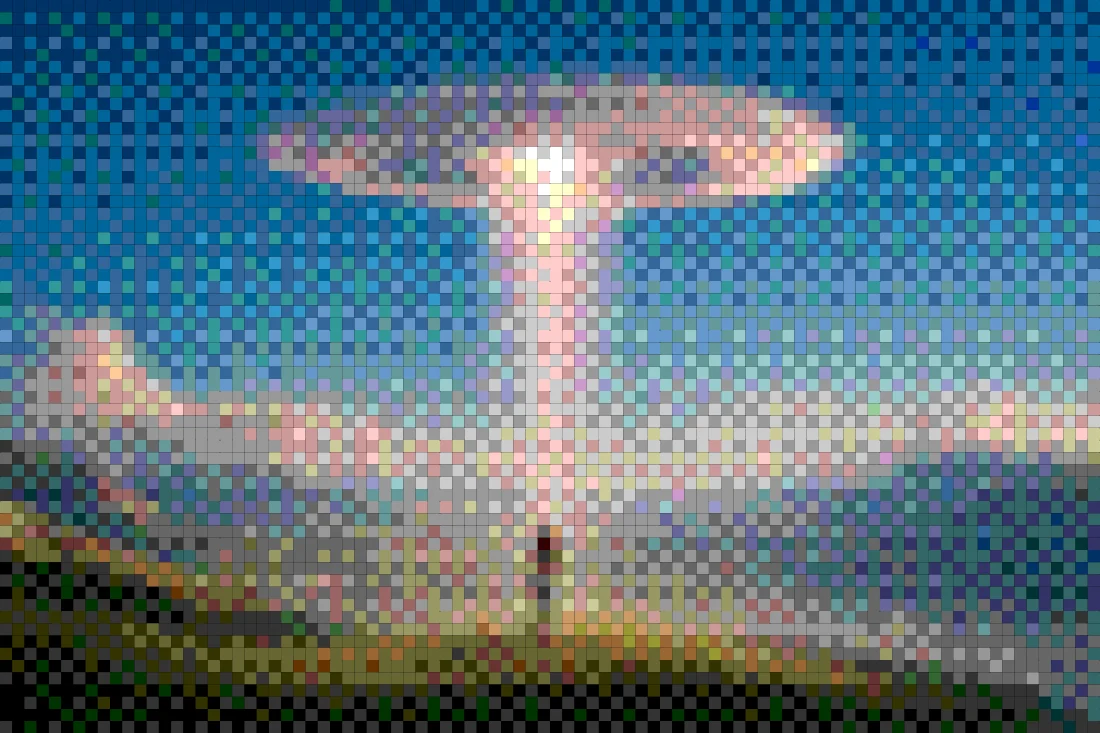
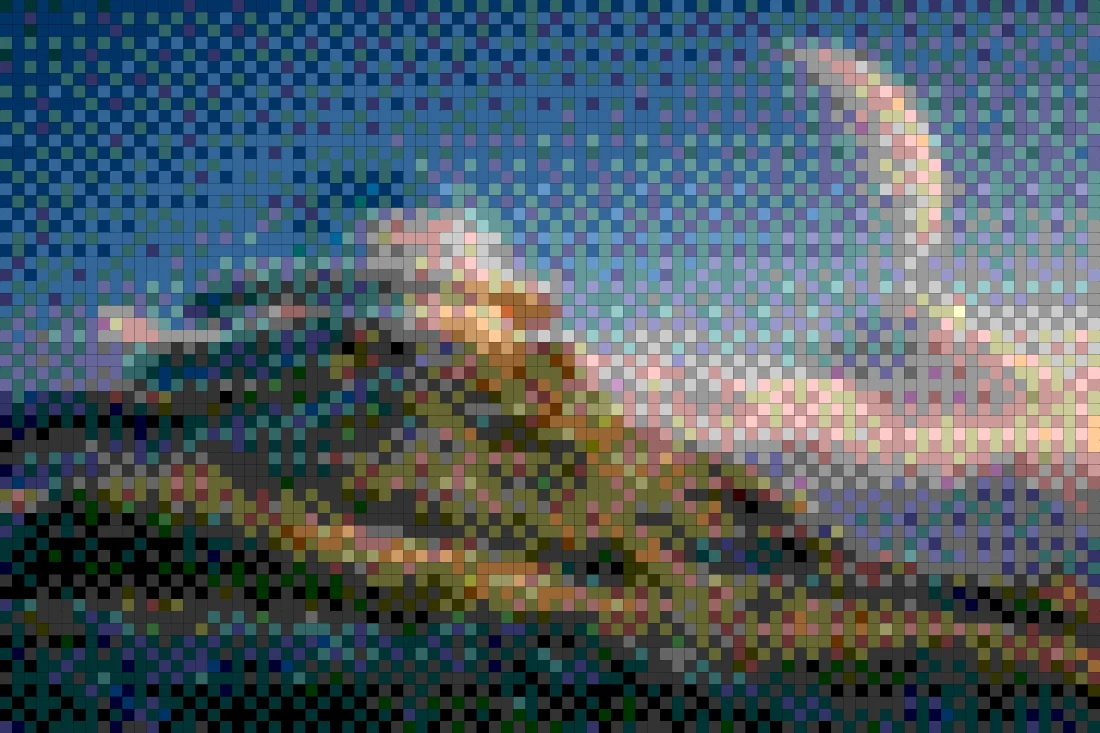
Before & after examples
Rendered with this exact tool at these exact settings. Click any image to view or save it full size.




FAQ
What makes an image look '8-bit'?
Low spatial resolution (big pixels), a small color palette, and often ordered dithering to fake gradients. Goldenboy gives you a direct control for each of the three.
Can I make 8-bit versions of video clips?
Yes — the same pipeline runs on video and exports MP4, so you can 8-bit a clip for an intro or a loop.
Will my export have a watermark?
No. Free exports are watermark-free at preview resolution; Pro re-renders at source resolution up to 4096px.